
Overview
The export feature in the AI Insights Dashboard helps you understand the needs and behaviors of your employees. It gives you aggregated data on the questions being asked, their categories, the answers served, and how usage breaks down by channel, country, role, and document.
You can also pull a separate AI Notifications report that shows the delivery results for the push messages you have sent.
Here is what these exports help you see:
✅ How many employees are engaging, and through which channels
✅ What employees are asking, broken down by category, country, and role
✅ Your most-served answers globally and country by country
✅ How many answers come from prescriptive content versus synced documents
✅ Which of your synced documents are actually generating answers
✅ Whether your AI Notifications reached employees, and why any did not
? Tip: The Answers Served per Category and Answers Served per Document sections are great for spotting content gaps. If a topic is drawing heavy volume, it is worth confirming your answers there are current and complete.
? Tip: When an AI Notification shows failed deliveries, the failure columns tell you where to look first. A cluster under Employees Without the Bot Installed points to an adoption gap, while Other Failures often points to an outdated recipient list.
How to Export Your Data
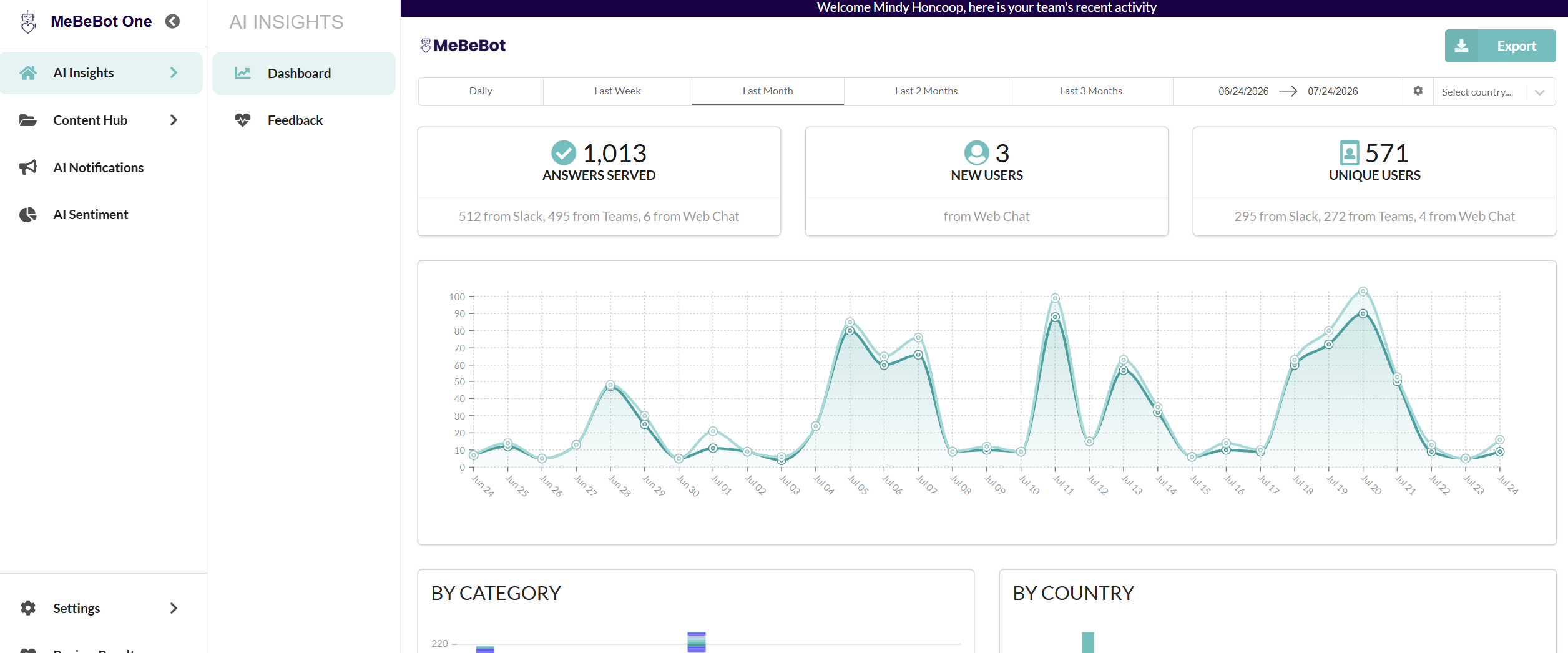
Step 1: Open the Dashboard
Select AI Insights > Dashboard.
Step 2: Select a Timeframe
Choose the timeframe you want to analyze. You can set a custom date range or pick one of the preset intervals.
Step 3: Export
Select the Export button in the top right corner. Then select Usage Data or Push Data.
This downloads a CSV file containing your data. The export opens with the exact date range you selected, so you always know the window you are looking at.
What the Usage Data Export Includes
The CSV is organized into sections. Each one gives you a different view of how employees are using MeBeBot.
- New Users per Channel: How many first-time users engaged, broken down by channel such as Web Chat, Microsoft Teams, Slack, and SMS.
- Answers Served per Channel: Total answers delivered through each channel, so you can see where employees are engaging most.
- Answers Served per Country: For each country, the total answers served, the number of unique users, and the average answers per user. A quick read on both reach and depth of use by region.
- Top 5 Answers Served per Country: The five most-served answers in each country.
- Top 10 Answers Served Globally: The most common answers served across all regions.
- Questions Asked by Category: The volume of questions by category, such as IT, Benefits, and Policies, so you can see which topics matter most to your employees.
- Answers Served per Category: A detailed breakdown within each category, showing the specific question, the employee role that asked it (Team Member or People Manager), and how many times it was served.
- Prescriptive vs Non-Prescriptive Answers: How many answers came from your prescriptive content versus your non-prescriptive synced documents.
- Answers Served per Document: Which of your synced documents are generating answers, and how many, so you can see what content is actually being used.
The AI Notifications Report (Push Data)
Alongside the usage export, you can pull a separate AI Notifications report as a CSV. This report shows the delivery results for the push messages you have sent, so you can confirm they reached your employees and troubleshoot any that did not.
Like the usage export, it opens with the date range you selected. It also includes a Totals row that sums the numbers across that window.
What the AI Notifications Report Includes
For each notification, the report shows:
- Date: The date and time the notification was scheduled to send, based on the time zone set in Settings.
- Message: The first 100 characters of the notification that was scheduled or sent.
- Recipients: The name of the CSV file or internal group the notification was sent to.
- Expected Recipients: The number of employees you expected to receive it, based on that CSV or group.
- Successful Employee Deliveries: How many employees received the notification.
- Failed Employee Deliveries: How many did not receive it.
- Employees Blocking the Bot: Deliveries that failed because the employee has blocked the bot.
- Employees Without the Bot Installed: Deliveries that failed because the bot was not installed for that employee.
- Other Failures: Other reasons a notification did not land, such as a misspelled email, a terminated employee with a still-active email, or an email that does not match any employee.
- Count of Push Messages: The number of notifications sent.